
Upstream proxy
A session can reach servers through another proxy instead of connecting directly. Keep the proxies you use in lists, then give each session one of them, a random one, or one typed by hand.
Set it
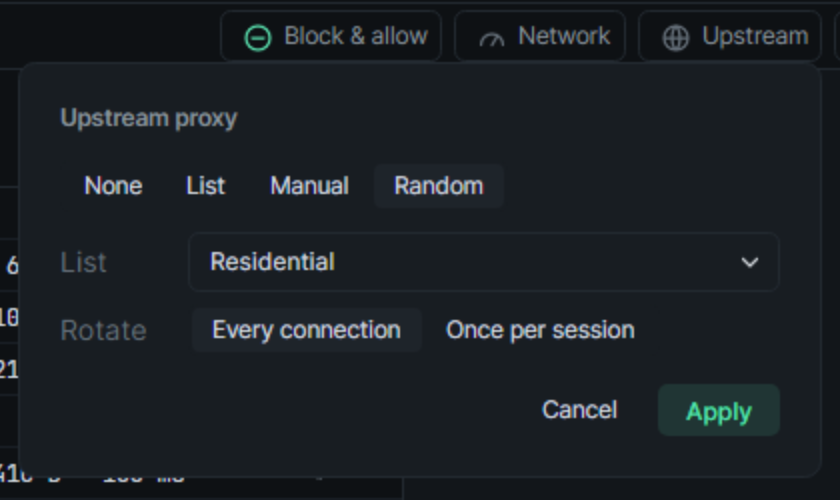
Section titled “Set it”Open Upstream at the right end of the session tabs, beside Network. Right-click a tab › Upstream proxy… opens the same panel. Pick one, then Apply (Enter):
| Choice | Goes through |
|---|---|
| None | No proxy: the session connects directly. |
| List | The proxy you pick from a list. Filter narrows the list’s proxies to those whose address or user holds what you type. |
| Manual | The proxy you type. |
| Random | A random proxy from a list. |
For Random, Rotate says when a proxy is picked:
- Every connection: each new connection to a server takes a proxy at random from the whole list. When you add or remove proxies in the list, the session uses the list as it now is.
- Once per session: one proxy is picked when the session starts and kept until zhttp restarts or you apply the choice again.
zhttp checks the choice before applying it. If it can’t use it, the panel stays open and says why.
A new session takes the same choices in the dialog + opens.
Proxy lists
Section titled “Proxy lists”Lists live under Settings → Proxies, and every session can use them.
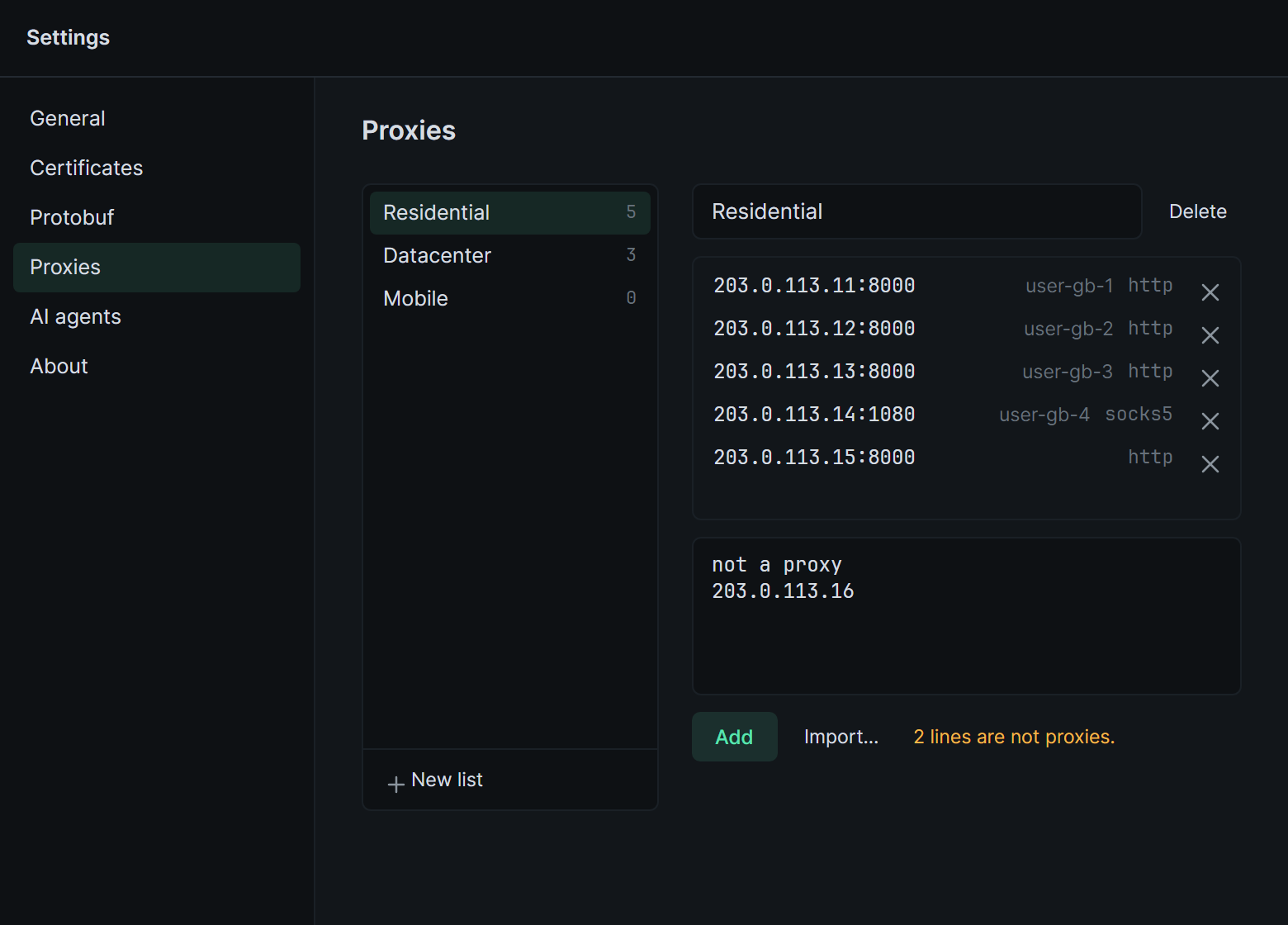
- New list adds one. Type its name in the field at the top and press Enter.
- The chosen list’s proxies show in a table of Host, Port, User, Password and Type. A long host, user or password is cut in the middle, keeping its start and end.
- Paste proxies, one a line, into the box under the list and click Add. Import… reads them from a text file. A proxy already in the list isn’t added twice.
- Lines that aren’t proxies stay in the box, and zhttp says how many there are, for example
2 lines are not proxies.Fix them and click Add again. - The × on a row removes that proxy. Delete removes the list.
A list a session uses can’t be deleted. Nor can the last proxy be removed from a list a session takes at random. zhttp names the session instead, so a session never falls back to connecting directly.
A proxy picked from a list is the session’s own: changing the list later doesn’t change it.
Formats
Section titled “Formats”| Write | For |
|---|---|
proxy.example.com:8080 |
An HTTP proxy |
proxy.example.com:8080:user:pass |
An HTTP proxy with a login, as proxy providers often list it |
user:pass@proxy.example.com:8080 |
The same |
user:pass:proxy.example.com:8080 |
The same |
proxy.example.com:8080@user:pass |
The same |
http://user:pass@proxy.example.com:8080 |
The same, as a URL |
socks5://proxy.example.com:1080 |
A SOCKS5 proxy |
socks5://user:pass@proxy.example.com:1080 |
A SOCKS5 proxy with a login. socks5h:// is the same. |
socks5://proxy.example.com:1080:user:pass |
The same |
In a URL, a password with @ or : in it is written with %40 or %3A. In the other forms it is written as it is.
What changes
Section titled “What changes”- The session’s tab shows a globe, and the Upstream button names the proxy, for example
Upstream proxy.example.com:8080orUpstream Residential · random. Hover the globe for the same. Neither shows the password. - Each connection to a server goes through the upstream proxy, which also looks up the server’s name. What the app sends travels inside it unchanged, fingerprint included.
- A connection that fails through the proxy isn’t retried directly, so the server never sees this computer’s own address.
- A change applies to connections made from then on. Connections already open keep the route they took.
- The Timing tab shows the address of the proxy each connection went through. The Connection tab shows the proxy in full: its type, host, port, user and password, and all four on one line as
host:port:user:pass. A recording you export keeps them, password included.
The upstream proxy, and the lists, are saved with the sessions.